

Monsterwin Casino’s mobile app is built for players in Greece who desire fast access to the lobby, cashier, and account tools without opening a browser https://monsterwin-gr.com/app/. This guide focuses on Picture in Picture mode, the feature that lets supported video float above other apps, and describes where it belongs in the Monsterwin Casino app. We detail download and install steps, device compatibility, in-app features, data use, and the limits you ought to know before relying on PiP. The aim remains practical: help you check whether your phone works with the mode, configure it correctly, and grasp what it can and cannot do during a session.
App vs Desktop Version in Greece
The desktop version stays helpful for a bigger lobby view, side-by-side game filters, and simpler cashier work on a big screen. The mobile app wins on convenience: push notifications, biometric login, touch controls, and the ability to maintain a supported video visible in PiP while you check a message. Game catalogs can vary by device and region, so if a title is absent on mobile, check the desktop lobby before assuming it is not available. We access the same Monsterwin Casino account across both, but we confirm cashier limits and verification steps in the app because mobile layouts sometimes hide details behind menus.
How PiP Operates on Android and iOS throughout Greece
On Android, PiP is commonly activated by a home gesture or a small PiP icon on a compatible video; on iPhone and iPad, search for the PiP symbol or use the home gesture after beginning playback. The app must declare support, and the operating system must enable the feature. In Greece, the similar rules are valid on Greek carrier networks and Wi-Fi, but manufacturer battery savers can stop floating windows. If no PiP control is visible, the screen is probably not eligible, or the permission is deactivated. Review your device settings for Picture in Picture or floating windows, then try again with a short video before you presume the feature is unavailable from Monsterwin Casino.
The Picture in Picture Signifies in the Monsterwin Casino App
Picture in Picture is an OS feature that holds a supported video playing in a small floating window while you access another app. In a casino app, it is pertinent to video content such as live dealer streams, event coverage, or promotional clips, not to slot reels or interactive tables that demand the full screen. We regard PiP as a viewing convenience, not a way to maintain a betting session active in the background. If the Monsterwin Casino app provides PiP on a video screen, you can check a message or review your notes while the stream stays visible; the exact behaviour depends on your device and the app build.
In-App Features and Mobile Performance
Beyond PiP, the mobile app is where we anticipate rapid access to the lobby, game categories, search, cashier, bonuses, and account settings. Push notifications can notify you to account messages or new content, but they are elective and should be controlled from the app and system settings. Biometric login reduces typing on a phone, while responsible gaming tools such as deposit limits or session reminders should be simple to locate in the account area. Live dealer video and promotional clips are the most likely PiP candidates; interactive games usually demand the full screen and may freeze when you switch away. Check the official app for the exact feature set present in Greece.
Performance depends on your connection and the video quality chosen. A live dealer stream in PiP can use significantly more data than browsing text and thumbnails, so we recommend Wi-Fi for longer sessions and a reasonable quality setting when you are on mobile data. Greek island coverage and indoor signal can vary, and a weak connection may cause buffering even when PiP is enabled. Battery drain is also higher because the screen and network stay active. Close unused apps, lower brightness, and keep the phone cool; if the device overheats, the system may stop the floating window or reduce video quality on its own.
Getting and Configuring Monsterwin Casino on Your Phone
Prior to installation, use the authorized Monsterwin Casino page or the store listing linked from it, and verify that online casino play is permitted for you in Greece. Check that your phone has adequate free storage, a current operating system, and a reliable connection. Steer clear of modified APK files, third-party download sites, and messages that offer unusual bonuses in exchange for installing an unknown package. The steps below describe the usual mobile route; the specific labels can vary by Android version, iPhone model, and the app build provided at the time you download.
- Launch the official Monsterwin Casino mobile page on your phone and choose the download option for your device.
- For Android, enable installs from your browser or file manager only if you trust the official source, then run the downloaded package.
- For iPhone or iPad, access the App Store link if one is available and confirm with Face ID, Touch ID, or your Apple ID password.
- Wait for the install to finish, then open the app and register through the official flow.
- Upgrade the app when notified, activate notifications only if you desire them, and fulfill any required verification steps.
- Test the lobby, cashier, and a short video screen before you depend on PiP during a longer session.
Android users in Greece may have to sideload the app if it is not available through Google Play, which means turning on “install unknown apps” for the browser or file manager you use. That permission is sensitive: disable it again after installation and keep the downloaded file only if you understand why you need it. iPhone and iPad users should use the App Store route when available, because iOS does not allow the same sideloading process. After installation, log in through the app rather than a imitation page, and check that the cashier and account details appear correctly before you initiate a session.
Arranging PiP Before You Play
Set up PiP prior to opening a live stream, since switching away mid-session to search through settings is disruptive. Initiate with the device-level permission, then test inside the Monsterwin Casino app using a short promotional clip or any video screen that shows a PiP control. If the app asks for notification or overlay permission, examine the explanation and give only what is needed. We also advise turning on screen lock and biometric login first, so a floating window does not reveal account details to someone nearby. The checklist below is the sequence we would apply on a phone in Greece.
- Upgrade the Monsterwin Casino app and your phone’s operating system to the latest available version.
- Navigate to system settings and verify Picture in Picture or floating windows is allowed for the app.
- Disable aggressive battery optimisation for the app if your device has a specific toggle for it.
- Log in, start a supported video, and search for the PiP icon or utilize the home gesture.
- Confirm that audio continues as expected and that the floating window can be moved or closed.
- Evaluate on Wi-Fi first, then assess mobile data behaviour if you plan to use PiP outside.
If the floating window emerges but the video pauses immediately, the cause is often an audio focus rule, a battery saver, or a background data restriction. On some devices, PiP functions only while the app is in the foreground for a moment, then the system takes over; on others, you must tap the home gesture rather than the app switcher. We do not suggest changing deep system settings you do not understand just to compel PiP. Instead, record the exact screen where it fails and contact Monsterwin Casino support with your device model, operating system version, and a short description. That information helps support tell you whether the issue is known or device-specific.
Picture-in-Picture Restrictions, Fair Conduct, and Account Security
PiP does not turn a casino game into a passive task. When you exit a slot, roulette table, or live dealer screen, the game can pause, time out, or cease accepting wagers; PiP is meant for video viewing, instead of keeping a wagering session alive. We recommend against depending on a floating window to place bets while engaged elsewhere, because timers and connection drops can affect the outcome. Always review the game rules and the app’s terms for session timeouts. In Greece, utilize the app within the legal framework that applies to you, and use deposit limits or time reminders if required.
Account safety warrants additional care when a video floats over other apps. A PiP window could disclose balances, names, or chat messages to people nearby, so activate screen lock and avoid using the app on shared phones. Install only from official sources, maintain OS updates, and never reveal one-time codes with anyone who contacts you. If you walk away, close the floating window and lock the device rather than leaving a live stream visible. These habits are simple, but they are more important on mobile than on a desktop because the screen travels with you around Greece.
Device Requirements and Basic Needs
PiP is not a one-size-fits-all option that works on every phone. It is determined by the system software, the brand’s interface, the app build, and the content type being played. As a broad baseline, PiP video is commonly available on Android 8.0 and later and on iPhone with iOS 14 and newer versions, while iPad support has existed for longer; Monsterwin Casino’s own basic specs may be higher. We advise reviewing the app’s official page for the current supported versions before downloading, notably if you own an outdated gadget or a portable screen. The list below addresses the key aspects we would check as a priority.
- Android phone or tablet with a recent security patch and enough free storage for the app and its stored files.
- iPhone or iPad operating a supported iOS version, with PiP turned on in system settings if accessible.
- Reliable Wi-Fi or mobile data; live video in PiP consumes more network capacity than browsing the lobby.
- A charger or enough power, because picture-in-picture video and live streams can drain power faster.
- Region and account eligibility for Greece, plus any authentication the cashier requests.
- Screen lock, biometric login, and up-to-date browser or app authorizations for more secure access.

Manufacturer modifications matter more than many players think. Some Android phones actively shut down background apps to preserve battery, which can interrupt a overlay video even when PiP is turned on. Samsung, Xiaomi, and other brands may use alternative labels for the option, such as “Picture-in-picture” or “Floating windows.” On iPad, multitasking and Stage Manager can affect how video behaves. If PiP operates in another app but not in Monsterwin Casino, the issue is likely the app screen or a permission issue rather than your Greek mobile network. Test after refreshing both the app and the operating system, and skip battery-saving modes during live video.
What to Check Before You Rely on PiP in Greece
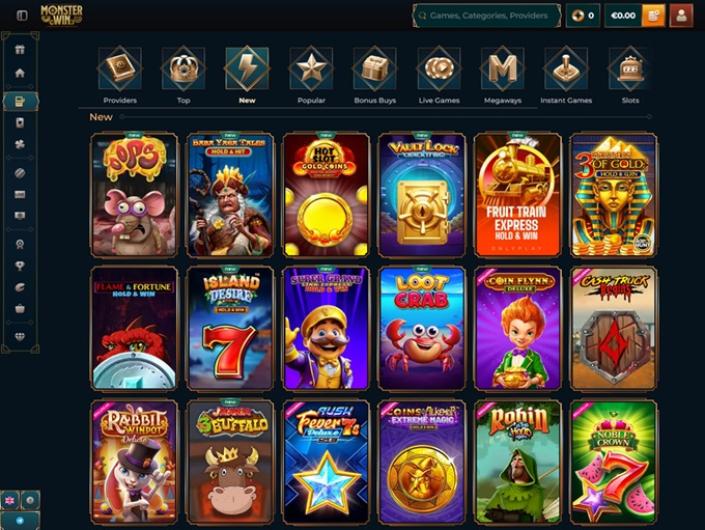
Before you rely on PiP for a live stream, check four things: your device supports the mode, the Monsterwin Casino app release offers it for that screen, your account is authenticated and verified as needed, and your connection can handle video. Try with a short clip on Wi-Fi, then try again on mobile data if that is how you will be watching. Ensure the app up to date, because PiP performance can change with operating-system versions and app fixes. If the control never becomes visible, employ the app’s support channel with your device model and a explanation of the screen; that is more valuable than assuming.
- Authorized download source confirmed and the app updated.
- Device Picture in Picture permission enabled for Monsterwin Casino.
- Battery management deactivated for the app if your phone prevents floating video.
- Wi-Fi or strong mobile signal verified with a short video.
- Account confirmation and cashier limits verified before a longer session.
- Screen lock, biometric login, and responsible-gambling tools checked.